Combine your family’s schedules
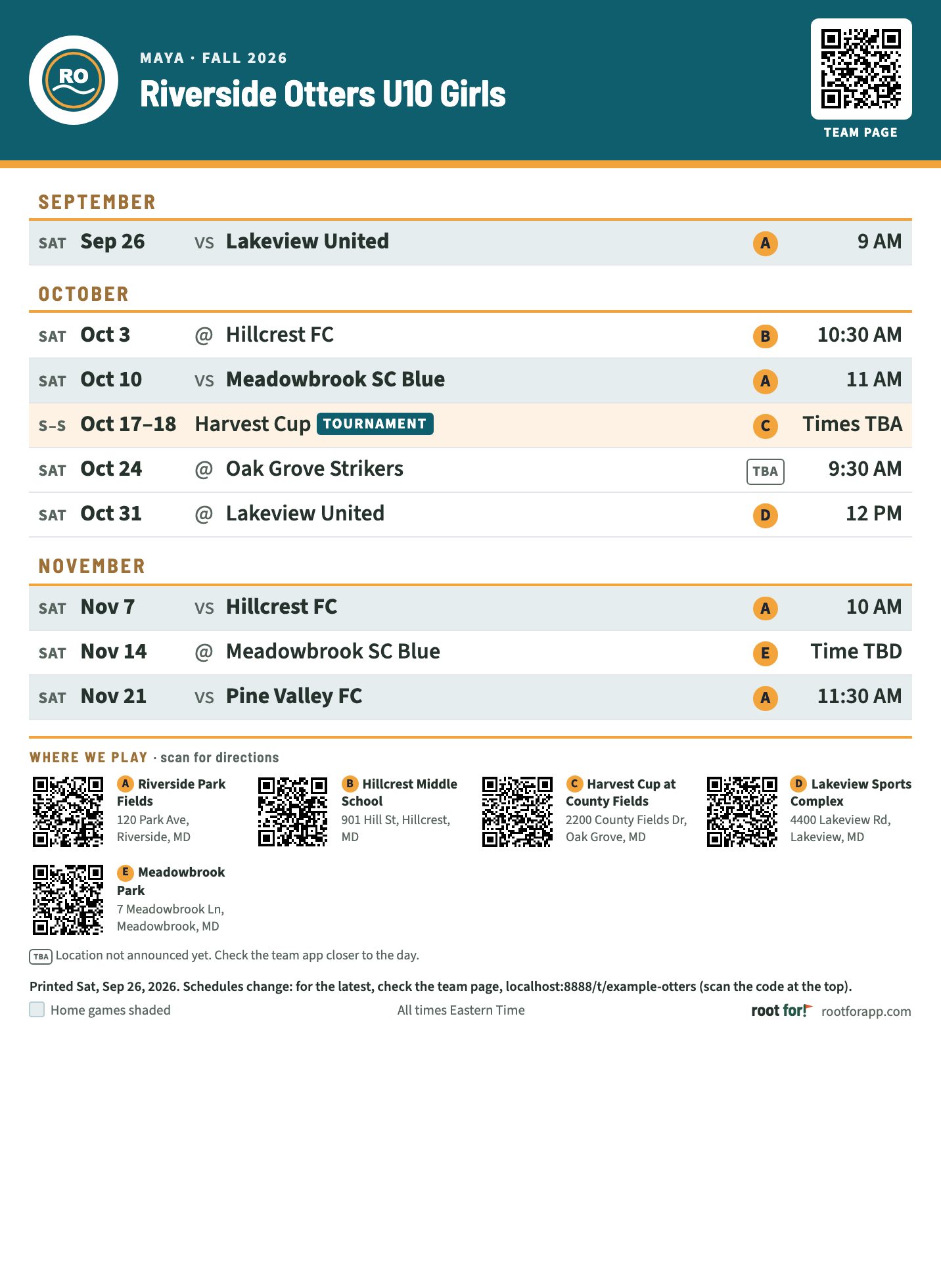
Add each of your kids’ teams. You’ll get one family printout, a printout for each team, and a month calendar.
Make my family scheduleEasily turn team calendars into a shareable family schedule, printable posters, and a team page anyone can open on their phone.
Works with TeamSnap, SportsEngine, and other team apps that offer a calendar link. Nothing to download.
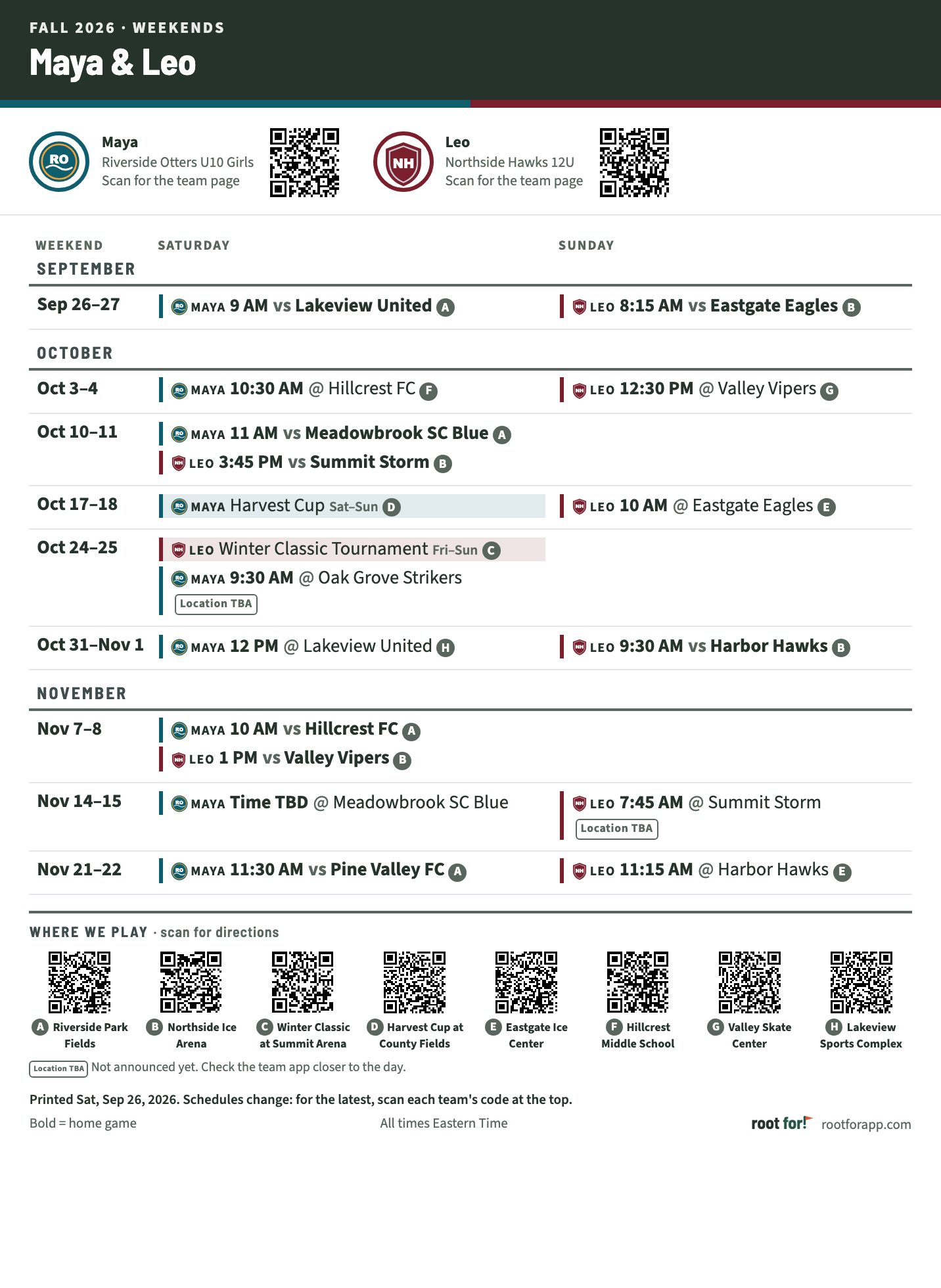


Paste the calendar link from your team app. We’ll show you where to find it.
Review the details and add another team if needed.
Print your schedule, share your team page, or add events to your calendar.
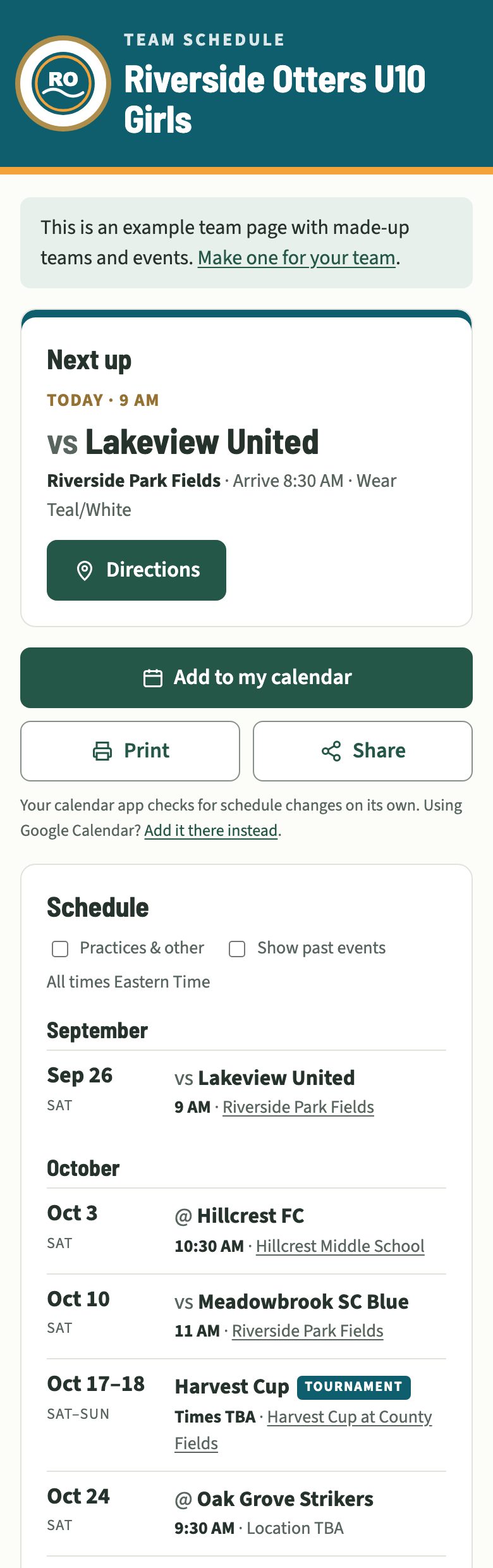
These examples come straight from Root For, using a made-up family with two teams.
Add each of your kids’ teams. You’ll get one family printout, a printout for each team, and a month calendar.
Make my family scheduleMake a page for your team once. Families and friends can open it from a link or the code on a printout, and it stays current as the schedule changes.
Make a team pageTeamSnap and SportsEngine, plus other team apps that give you a calendar subscription link. These links usually start with webcal:// or https:// and are sometimes called an iCal or .ics link. If your app lets you subscribe to the team schedule in Google or Apple Calendar, it almost always has one.
TeamSnap, on the TeamSnap website:
SportsEngine, on the SportsEngine website:
The mobile apps let you subscribe but don’t show the link itself, so use a web browser for this step. Setup walks you through it.
Team pages and the “Add to my calendar” subscription read the team’s calendar, so they pick up changes on their own. Calendar apps check for updates on their own timing, which can take a few hours, and team apps can take a while to publish changes too.
Printouts are a snapshot. Each one shows the date it was printed and where to find the latest schedule.
Your family setup, including your kids’ names, is saved only in this browser. Kids’ names appear on your own printouts, never on team pages.
Team pages show a team’s schedule and links. They aren’t listed or searchable, but anyone with the link or code can see event times and locations, so share them with people you trust. Whoever creates a team page can delete it, and anyone can report one.
Yes, in this browser on this device. There are no accounts yet, so your setup won’t appear on your other devices, and clearing your browser data removes it. Team pages are saved online, and their creator gets a private link for editing.
Start with one team’s calendar link. You can add more teams anytime.